
Daily Tip: How to Migrate Basic WordPress Site Settings for Quick Reuse
August 4, 2010
A new plugin called Migrate Site Settings gives you the option to save your basic WordPress settings and export them for reuse on another site. It will save the General, Writing, Reading, Discussion, Media, Privacy, and Permalinks Screens so that you can easily import and deploy them on another site. If you’re building sites with similar settings and you don’t want to go through and mark them all each time, this plugin should save you a bit of time.
Daily Tip: How to Migrate Basic WordPress Site Settings for Quick Reuse
August 4, 2010
A new plugin called Migrate Site Settings gives you the option to save your basic WordPress settings and export them for reuse on another site. It will save the General, Writing, Reading, Discussion, Media, Privacy, and Permalinks Screens so that you can easily import and deploy them on another site. If you’re building sites with similar settings and you don’t want to go through and mark them all each time, this plugin should save you a bit of time.
Win free membership to BuddyDress for a year by creating a BuddyPress Colours theme
August 4, 2010
What could be better than being a member of the great theme club that is BuddyDress? How about being a member for free?
Yes, that’s right over at BuddyDress there is a competition where you can win free membership for a year!
What do you have to do?
It’s really simple, all you have to do is create a colour combination theme based on the popular BuddyPress Colours theme.
You can find out more about the rules and how to enter right here.
We think you’ll agree this is a great chance to not only get tons of BuddyPress themes but also great support just like any BuddyDress member. How about that for a prize!
Don’t delay, click here to find out more and enter.
18 WordPress Calculator Plugins to Engage Your Visitors
August 4, 2010
Calculators are often overlooked as a simple utility, but you might be surprised by how much they increase user interaction on your site. If a user finds your calculator extremely useful, he’s likely to bookmark your site so that he doesn’t have to search for it the next time. You may not be aware of the variety of calculator plugins available for WordPress, so here’s an excellent sampling of recently updated plugins that will perform calculations on your website.
If your site depends on being able to provide some sophisticated calculations for your visitors, then WordPress has the calculator for you. Many of these can be used in combination with a BuddyPress site to promote a community that’s based on mutual interests and goals, such as running, losing weight, or getting out of debt.
Mortgage Calculator Sidebar Widget
A Mortgage Calculator sidebar widget that enables your visitors to calculate their monthly payments towards their mortgage.
Download Plugin
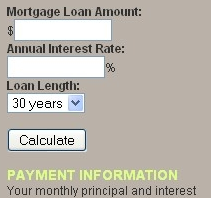
Mortgage Loan Calculator
This is a sidebar widget that calculates your principal and interest mortgage loan payment. You insert the loan amount and interest rate (pop up tells you to insert a number if you put anything other than a number in), choose the length of the loan from a drop-down, and press the calculate button. Your payment information is displayed.
Download Plugin
Financial Toolbox
The financial toolbox includes a news ticker for the latest financial news along with an integrated credit calculator.
Download Plugin
Net Worth Calculator
This plugin helps you keep track of your monthly assets, liabilities, and net worth. You can mark any asset or liability value as private if you do not want it to displayed.
Download Plugin
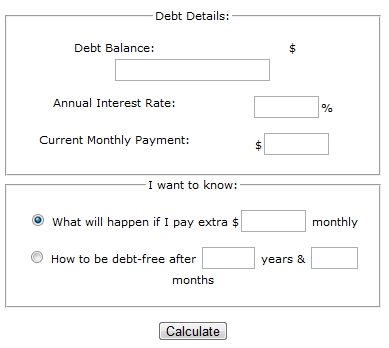
Debt Reduction Calculator
This plugin displays functional debt reduction/debt payoff calculator. It shows people how they can pay debt faster or how much they need to pay extra each month in order to be debt free after choosen period of time.
Download Plugin
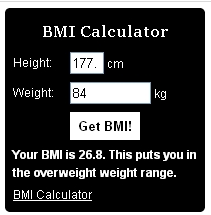
BMI Calculator Widget
This plugin will let you add a fully customizable BMI calculator widget to any widget enabled space. Both standard & metric input options and full color customization to match your theme exactly are available.
Download Plugin
Adeel’s Zodiac Calculator
This plugin provides sidebar widget that displays your visitors’ Chinese and/or Western zodiac signs based on their date of birth without reloading the page.
Download Plugin
Runner’s Log
This plugin let you convert your blog into a training log and let you track your distance, time, calories and calculate your speed, time per km(or miles), and let you have advance statistics. It includes a Training Zones Calculator, VDOT calculator, V02maxulator Calculator, Race Time Calculator, Training Pace Calculator, Body Mass Index Calculator, Calculate Predicted effect of change in weight.
Download Plugin
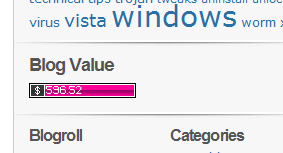
Blog or Website Value Calculator
This is a plug-in that gives you a nice tidy widget to display your blog’s current estimated value in dollars. This information is displayed to you and your visitors to demonstrate just how much hard work you have put into your blog.
Download Plugin
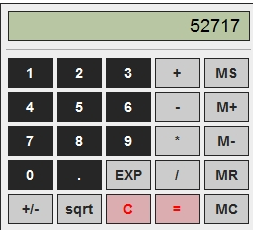
Math Calculator
This is a simple calculator can be used for quick on site calculations. Check http://www.calculator.net/math-calculator.html for a demo of this calculator.
Download Plugin
NACC WordPress Plugin
This is a WordPress plugin implementation of the N.A. Cleantime Calculator. When you use the shortcode for the plugin, it will calculate and display cleantime.
Download Plugin
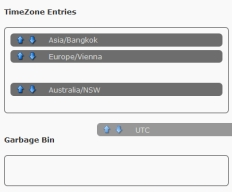
TimeZoneCalculator
This plugin calculates, displays and automatically updates times and dates in different timezones with respect to daylight saving. The calculator uses AJAX and is based on the PHP timezones database.
Download Plugin
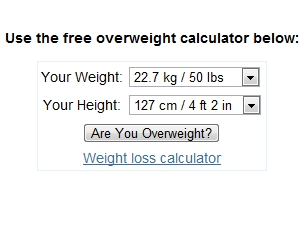
Overweight Calculator
This plugin displays functional overweight calculator / BMI calculator. It can be used to check the user’s Body Mass Index and suggest the recommended weight range.
Download Plugin
Love Calculator
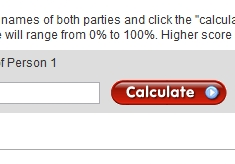
This love calculator evaluates the compatibility of two people based on names. The score range from 0%-100%. The higher the score the better. This calculator can be inserted either to the sidebar or into the post, but not both. Check http://www.calculator.net/love-calculator.html for a demo of this calculator.
Download Plugin
Countdown Timer
Countdown Timer allows you to setup one or more dates to count down to or away from. Events can be inserted into the sidebar, either manually or as a widget, or within posts and pages.
Download Plugin
GeneralStats
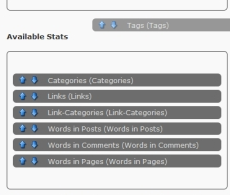
This plugin counts the number of users, categories, posts, comments, pages, links, tags, link-categories, words in posts, words in comments and words in pages with AJAX functionality.
Download Plugin
Post Stats
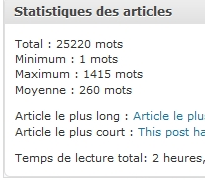
This plugin calculates and displays total number of words in blog posts, minimal and maximal post length, shortest and longest post (title and permalink), and estimated reading time of the blog posts. It can be displayed in the dashboard, on a sidebar widget, or before and after each post.
Download Plugin
Price Calc
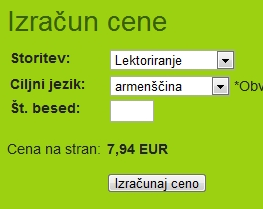
This is a plugin that shows a n inter-active price calculator form on any post, page or widget content. Let your customers view automatic bids and cost estimates for your products and services. You can set up a set of product variations and freely define a price structure.
Download Plugin
BuddyPress Humanity: The Newest Weapon to Fight Signup Spam
August 3, 2010
Welcome BuddyPress Humanity, the latest plugin on the scene to help you combat BuddyPress signup spam.
As you can see from the screenshot, this plugin will add a customizable security question to the BuddyPress signup form. You can write your own question, change it as often as you want, and assign the correct answers to verify the user’s humanity.
This plugin currently works perfectly when WordPress Multisite is enabled, but if you want it to work with single user WordPress, you’ll need to do this one small switch:
Find this in the buddypress-humanity.php file:
add_action('bp_after_blog_details_fields', 'bph_show_input_field');
and replace it with this:
add_action('bp_before_registration_submit_buttons', 'bph_show_input_field');
I’ve notified the plugin developer about this and perhaps he’ll change it, so make sure to test the plugin to see if it works for you before changing the file.
Please note that BuddyPress Humanity will not completely eliminate spam, but it will definitely deter some bots and help you spend less time deleting spam users. If you’re suffering from more spam than you can keep up with, give this plugin a try and see how much it can cut it back for you.
Looking for other, more effective methods for stopping the onslaught of BuddyPress signup spam? Check out Anti-Splog, the most comprehensive spam-killing plugin currently available for WordPress, Multisite and BuddyPress. It’s powered by our new Anti-Splog API service that effectively learns as it kills spam across thousands of blogs connected to the service. You won’t find any other solution out there that can rival Anti-Splog.
Come work with us! Advanced WordPress Plugin Developer @ WPMU DEV position now available
August 2, 2010
We’re looking for someone experienced in complex but beautiful WordPress plugin development, to become a key member of the WPMU DEV team.
For this position we’re keen to work with someone who has demonstrable experience with WordPress plugin development, can deal with serious levels of difficulty, has exceptionally quick turnaround times, doesn’t mind getting stuck into UI design, has a great degree of autonomy and who’s up for a challenge!
The role will basically involve:
- Conceiving, designing and developing custom, technically challenging, WordPress plugins as part of the WPMU DEV team
- Providing ongoing support for and customization of these plugins
- Alongside this, and as agreed, working on other cool Incsub projects including Edublogs, WP.MU, WP Plugins and super secret exciting new stuff too!
We’re looking for someone to start right away with pretty much a full time load (although we don’t expect the successful applicant to give up their own current projects, pretty much every member of the team has their own projects too!).
We’ll start with a trial project to see how we get on with each other, and take it from there.
Location is unimportant, hours are flexible and remuneration is very competitive.
Who are we?
Incsub is the organization behind WPMU DEV, Edublogs, WP.MU, WP Plugins, BuddyDress and WPMU.org. You can see us all here: http://edublogs.org/about/.
What’s next?
Please contact us directly admin@incsub.com – subject: Advanced Plugin Developer Role
Please let us know about:
- You experience in WordPress plugin development – please provide concrete examples and, where possible, code samples or links to released code
- Your current availability and, of course, any questions that you might have!
We’re looking to take on someone as soon as possible, so the quicker you can get in touch with us, the higher the chance that we’ll be able to work something out.
Wanna print this out? Here’s a PDF version.
Daily Tip: How to Change the Post Thumbnail Size in a WordPress Theme
August 2, 2010
If you enable post thumbnails for your theme, you will find that you may not like the default size. If you want all of your post thumbnail images to be the same size throughout your theme, then you can set it in functions.php:
set_post_thumbnail_size( 100, 100 ); // 100 pixels wide by 100 pixels tall, box resize mode
OR:
set_post_thumbnail_size( 100, 100, true ); // 100 pixels wide by 100 pixels tall, hard crop mode
However, if you want to have different image sizes for archives, custom category pages, posts, and custom post types, you can set them directly within the template tag, like so:
<?php the_post_thumbnail('thumbnail'); ?>
You can select from the following options:
the_post_thumbnail();                  // without parameter -> Thumbnail

the_post_thumbnail('thumbnail');       // Thumbnail
the_post_thumbnail('medium');          // Medium resolution
the_post_thumbnail('large');           // Large resolution

the_post_thumbnail( array(100,100) );  // Other resolutions
For more information on post thumbnails, check out the WordPress codex or Mark Jaquith’s in-depth tutorial on how to use them.
Easy Guide to Displaying Custom Post Types in Your WordPress Theme
August 2, 2010
WordPress 3.0 offers the exciting new world of custom post types, giving you the ability to manage and present content with fine-grained control. Creating custom post types is the easy part, but how do you get them to show up in your theme? This tutorial will walk you through this process from start to finish. You’ll be able to incorporate custom post types into your WordPress theme in three easy steps.
Step 1: Create a Custom Post Type
There are basically two ways to create custom post types: add them with your theme’s functions.php file or create them using the help of a plugin, such as Easy Post Types.
For this example, we’ll create a custom post type for recipes. If you wanted to add the post type through your functions file instead of installing another plugin on your site, here is what you would include:
// Creates Recipes post type
register_post_type('recipes', array(
'label' => 'Recipes',
'public' => true,
'show_ui' => true,
'capability_type' => 'post',
'hierarchical' => false,
'rewrite' => array('slug' => 'recipes'),
'query_var' => true,
'supports' => array(
'title',
'editor',
'excerpt',
'trackbacks',
'custom-fields',
'comments',
'revisions',
'thumbnail',
'author',
'page-attributes',)
) );
Most of the items above are fairly self-explanatory. You will alter the post type, label and rewrite with the type of post you want to create.
If you want more information about registering custom post types, check out the WordPress codex.
After you save your functions file, you should see your new custom post type in the dashboard menu, as shown here. Now you can start adding new recipe posts.
Step 2: Add Your Post Type to a Custom Page Template
Adding your newly created custom post type to its own page is easier than you think. Make a duplicate of your theme’s page.php file. Add this to the top to let WordPress know that it is custom page:
<?php
/**
 * Template Name: Recipes Page
 *
 * Selectable from a dropdown menu on the edit page screen.
 */
?>
Then you will add this bit right before the loop (above the if ( have_posts() section):
<?php query_posts( 'post_type=recipes'); ?>
Step 3: Create a New Page For Your Custom Post Type
Create a page as usual through the WordPress dashboard. Give it a title and make sure to assign the “recipes” template to your page. Click “Publish” and now you should see a full page of your recipe posts.
If you want to have thumbnails included, make sure to enable post thumbnails for your theme and add this tag into your custom page template:
<?php the_post_thumbnail(); ?>
That’s everything from start to finish. There’s a lot more information to explore in the codex and other tutorials for pimping out your custom post types even further. Now that you have the basic idea, you can customize from there and start managing your content with greater flexibility.
Daily Tip: Quickly Move BuddyPress Forum Topics From One Forum to Another
August 1, 2010
Ever wanted to transfer a massive number of BuddyPress forum topics all at once? Now you can with the BP Move Topics. Install and activate and then go to BuddyPress >> Move Forum Topics to do the task. You won’t be able to undo the move, so make sure you’re selecting the right forum. If you’re faced with having to copy and paste a number of forum topics in order to move them, this plugin will save you a great deal of time.